

13 Jul Installomator Blocking Processes: When to Quit, Prompt, Wait, or Walk Away

Installomator is very good at downloading, verifying, and installing Mac apps, but one uncomfortable problem remains: what if the app is open while you are trying to update it?
That is where blockingProcesses and BLOCKING_PROCESS_ACTION come in.
A blocking process is a running app or related process that should stop an install or update from continuing until it is handled. Installing over a running app can cause user disruption, failed updates, damaged app bundles, or lost work. Installomator gives Mac admins two layers of control:
- The label decides which process names matter
- The policy or command decides what to do when those processes are running
This post is based on the Installomator wiki’s Configuration and Variables page and the current Installomator.sh implementation.
The Two Pieces
Inside a label, blockingProcesses is an optional array of exact process names. For example, the current Google Drive label blocks the Drive app and the desktop Google editor apps that depend on it:
blockingProcesses=( "Google Docs" "Google Drive" "Google Sheets" "Google Slides" )
When Installomator runs a label, it checks those process names before the install or update continues. In the current script, the check uses exact process matching with pgrep -x, so the values need to match real process names, not bundle IDs, app paths, or partial guesses.
Separately, BLOCKING_PROCESS_ACTION controls the behavior when one of those processes is running:
Installomator.sh googlechrome BLOCKING_PROCESS_ACTION=prompt_user
That distinction matters. Labels should describe the app accurately. Deployment policies should decide the user experience.
The Default Is Usually Enough
If a label does not define blockingProcesses, Installomator defaults to:
blockingProcesses=( $name )
That means most straightforward apps do not need a custom blockingProcesses line at all.
For example, if the label has:
name="Firefox"
and the running process is also Firefox, omitting blockingProcesses is correct. Adding this would just restate the default:
blockingProcesses=( "Firefox" )
It is not harmful, but it is unnecessary noise.
When to Define Blocking Processes
Add blockingProcesses when the default ($name) does not describe what actually runs on the Mac.
Good reasons include:
- The label name differs from the process name
- The app has helper processes that should also block an update
- A package installs multiple GUI apps
- The installer affects shared components outside a simple
/Applications/App.appcopy - You have verified that a specific service or helper must be stopped first
For example, the current Visual Studio Code label uses a friendly app name, but the process to check is Code:
name="Visual Studio Code"
appName="Visual Studio Code.app"
blockingProcesses=( Code )
That is useful because Installomator’s default would check for Visual Studio Code, but the running process is Code.
A package or suite installer that can affect several apps is another good case. Use examples that exist in the current Installomator labels.
For Microsoft Office, the suite labels block the main Office apps plus related update/sync components:
blockingProcesses=( "Microsoft AutoUpdate" "Microsoft Word" "Microsoft PowerPoint" "Microsoft Excel" "Microsoft OneNote" "Microsoft Outlook" "OneDrive" )
That is a good pattern for suite installers because the update may touch shared frameworks, licensing components, or files used by several apps. You do not want Word open just because the visible label being run is an Office suite label instead of the individual Word label.
Google Drive is another useful example. Its label blocks the Drive app and the desktop Google editor apps that depend on it:
blockingProcesses=( "Google Docs" "Google Drive" "Google Sheets" "Google Slides" )
NDI Tools shows the same idea for a package that installs multiple utilities:
blockingProcesses=( "NDI Access Manager" "NDI Discovery" "NDI Launcher" "NDI Router" "NDI Scan Converter" "NDI Test Patterns" "NDI Video Monitor" "NDI Virtual Input" )
The key is verification. Do not guess. blockingProcesses values are process names.
How to Find Process Names
The simplest way to find blocking process candidates is to install or launch the app, use it briefly, and then inspect what is actually running.
Start with the visible app:
pgrep -x "App Name"
Real-world example from the current Google Drive label:
pgrep -x -l "Google Drive"
Example output:
8421 Google Drive
That output means a process with the exact name Google Drive is running. If there is no output, that exact process name is not currently running.
Then broaden the search to catch helpers, background services, browser helpers, menu bar items, or vendor tools that may not match the app’s display name:
ps -axo comm,args | grep -i "vendor"
ps -axo comm,args | grep -i "app name"
pgrep -l -i "vendor"
Real-world examples from the current Microsoft Teams labels:
ps -axo comm,args | grep -i "Microsoft Teams"
pgrep -l -i "Microsoft"
Example output:
/Applications/Microsoft Teams.app/Contents/MacOS/MSTeams /Applications/Microsoft Teams.app/Contents/MacOS/MSTeams
/Applications/Microsoft Teams.app/Contents/Helpers/com.microsoft.teams2.respawn 55179 file:///Applications/Microsoft%20Teams.app/
/Applications/Microsoft Teams.app/Contents/Helpers/Microsoft Teams WebView.app/Contents/MacOS/Microsoft Teams WebView --embedded-browser-webview=1
/Applications/Microsoft Teams.app/Contents/Helpers/Microsoft Teams WebView.app/Contents/Frameworks/Microsoft Edge Framework.framework/Versions/149.0.4022.62/Helpers/Microsoft Teams WebView Helper.app/Contents/MacOS/Microsoft Teams WebView Helper --type=gpu-process
/Applications/Microsoft Teams.app/Contents/Helpers/Microsoft Teams WebView.app/Contents/Frameworks/Microsoft Edge Framework.framework/Versions/149.0.4022.62/Helpers/Microsoft Teams WebView Helper (Renderer).app/Contents/MacOS/Microsoft Teams WebView Helper (Renderer) --type=renderer
/Applications/Microsoft Teams.app/Contents/Helpers/Microsoft Teams ModuleHost.app/Contents/MacOS/Microsoft Teams ModuleHost --process_type=native_module
/Applications/Microsoft Teams.app/Contents/XPCServices/com.microsoft.teams2.teamsswitcher.xpc/Contents/MacOS/com.microsoft.teams2.teamsswitcher
7314 MSTeams
7348 Microsoft Teams WebView
7392 Microsoft Teams WebView Helper
7418 Microsoft Teams WebView Helper (Renderer)
7441 Microsoft Teams ModuleHost
That output gives you process names to verify more carefully before adding them to a label. In this example, MSTeams, Microsoft Teams WebView, Microsoft Teams WebView Helper, Microsoft Teams WebView Helper (Renderer), and Microsoft Teams ModuleHost are normal app/helper process names worth comparing against the current label’s blockingProcesses list. The launch-agent and XPC-style names are useful evidence too, but they need a separate decision because they may not respond well to Installomator’s AppleScript quit behavior.
Activity Monitor is also useful here, but use it for discovery, not measurement. Launch the app, then switch Activity Monitor to View > All Processes, Hierarchically so helper processes are indented under their parent process when macOS can show that relationship. After that, use the search field for the app name, vendor name, and any obvious product keywords. Search is helpful, but incomplete: some helper processes use framework names, generic service names, or launchd-managed labels that do not include the visible app name.
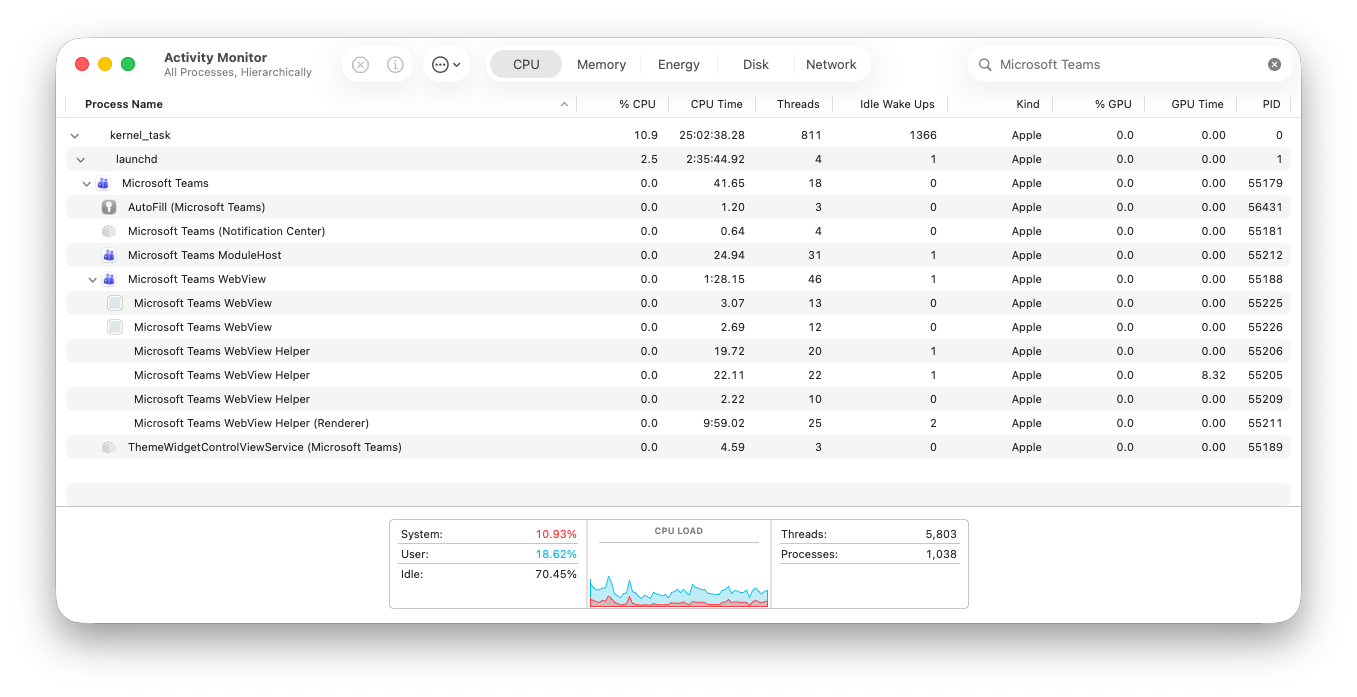
When a process looks related, but you are not sure, double-click it in Activity Monitor and check Open Files and Ports. Paths inside the app bundle, Contents/Helpers, Contents/Frameworks, Contents/XPCServices, Application Support folders, or vendor-specific directories, can help connect a helper process back to the app. Pay attention to helper processes that appear only after signing in, starting a meeting, opening a document, connecting a VPN, enabling a browser extension, or turning on a menu bar component.
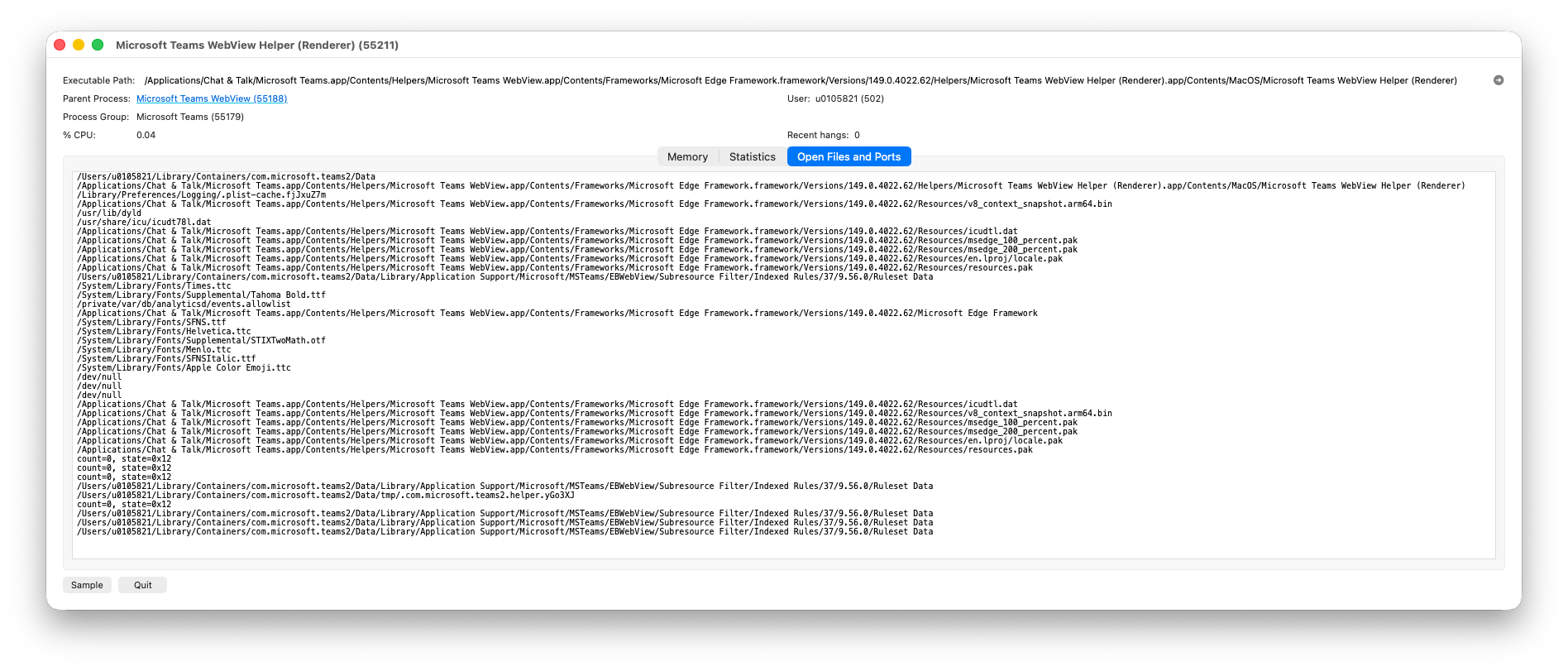
Activity Monitor can also miss the ownership story for processes started indirectly by launchd, login items, system extensions, privileged helper tools, or background services. If you need to compare what Activity Monitor shows with Terminal output, use commands like:
pgrep -afil "AppName"
ps -axo pid,ppid,comm,args | grep -i "AppName"
The pid and ppid columns from ps can help you compare parent-child relationships with Activity Monitor’s hierarchical view, while the full command path can reveal helper apps that do not include the app name in the short process name.
Do not rely on Activity Monitor’s CPU %, Energy Impact, or similar columns to decide whether a process matters for blockingProcesses. Howard Oakley’s Activity Monitor articles at The Eclectic Light Company are a good reminder that CPU % and Energy Impact can be misleading, especially on Apple silicon where core type, frequency, and time-weighting complicate what those numbers appear to mean. For this workflow, Activity Monitor is best used to identify process names and relationships; use pgrep, ps, package inspection, and testing to decide what should actually block an update.
Some common things that are easy to miss:
- Helper apps inside
Contents/Frameworks - Login items and menu bar apps
- Launch agents and launch daemons
- Privileged helper tools
- Browser extension native messaging hosts
- Updater processes
- Services that only start after the first login or first connection
- Electron helper processes with names that differ from the app name
Launch Items and Apps That Do Not Quit Cleanly
Finding a running process does not automatically mean it belongs in blockingProcesses.
In the current script, quit, prompt_user, prompt_user_loop, and tell_user all eventually use AppleScript to run:
tell app "Process Name" to quit
Then Installomator waits 30 seconds and checks again. That works well for many normal GUI apps, but it can be the wrong tool for launch agents, launch daemons, privileged helpers, menu bar agents, sync engines, VPN clients, and apps that immediately relaunch themselves.
Microsoft Teams is a good real-world example of why you should separate latest-package evidence from legacy compatibility entries in a label. Expanding the latest Teams package shows the main app executable:
Microsoft Teams.app | CFBundleExecutable=MSTeams
It also shows current helper app executables:
Microsoft Teams ModuleHost
Microsoft Teams WebView
Microsoft Teams WebView Helper
Microsoft Teams WebView Helper (GPU)
Microsoft Teams WebView Helper (Renderer)
And bundled launch-agent executables:
com.microsoft.teams2.agent
com.microsoft.teams2.respawn
When Teams was launched and checked with:
ps -axo comm,args | grep -i "Microsoft Teams"
The live process list showed these current process names:
MSTeams
com.microsoft.teams2.respawn
com.microsoft.teams2.notificationcenter
Microsoft Teams WebView
msedgewebview2_crashpad_handler
Microsoft Teams WebView Helper
Microsoft Teams WebView Helper (Renderer)
Microsoft Teams ModuleHost
com.microsoft.teams2.teamsswitcher
That live output is useful because package inspection tells you what could run, while ps shows what actually ran during that session.
The current Installomator Teams rolling label also includes older or compatibility-oriented names, such as Teams, Microsoft Teams Launcher, Microsoft Teams (work preview), and Microsoft Teams classic Helper. Those may make sense in a broad label that has to handle older installs, transitions, or renamed app generations, but they should not be presented as evidence from the latest Teams package.
Teams can be awkward to close because helper processes, launch agents, and respawn behavior may outlive the visible app. In that kind of case, blindly relying on quit or escalating to kill can be more disruptive than helpful. The current Teams labels also define Microsoft AutoUpdate as an updateTool when available, which is a better vendor-supported update path than fighting the app’s helper processes directly.
Based on the latest package and the live process check, a current Teams-focused list for normal GUI blocking would be:
blockingProcesses=( "MSTeams" "Microsoft Teams ModuleHost" "Microsoft Teams WebView" "Microsoft Teams WebView Helper" "Microsoft Teams WebView Helper (Renderer)" )
For a detection-only policy using BLOCKING_PROCESS_ACTION=silent_fail, you might also include launch-agent and XPC-style processes:
blockingProcesses=( "MSTeams" "Microsoft Teams ModuleHost" "Microsoft Teams WebView" "Microsoft Teams WebView Helper" "Microsoft Teams WebView Helper (Renderer)" "com.microsoft.teams2.respawn" "com.microsoft.teams2.notificationcenter" "com.microsoft.teams2.teamsswitcher" )
Do not use that expanded detection-only list with quit, tell_user_then_kill, or kill unless you have tested the behavior in your environment.
Be careful with processes that:
- are managed by
launchd - relaunch immediately after being quit
- do not respond to AppleScript quit events
- show save dialogs or session prompts that block quitting
- are background sync, security, network, or VPN components
- require a vendor uninstaller, updater, or service-management command
For those cases, first decide whether the process should block the install at all. If it should, silent_fail is often safer than trying to quit it automatically:
Installomator.sh vendorapp BLOCKING_PROCESS_ACTION=silent_fail
That lets the policy try again later without disrupting the user or fighting a relaunching service.
If the app must be closed by the user, prefer a user-visible action such as prompt_user or tell_user for normal GUI apps:
Installomator.sh vendorapp BLOCKING_PROCESS_ACTION=prompt_user PROMPT_TIMEOUT=300
If the process is a true service or launch item, do not assume kill is the right fix. Look for a vendor-supported update command, uninstall command, launchctl workflow, or an Installomator updateTool pattern. Force-killing a background component can interrupt sync, disconnect a VPN session, break a security agent, or cause the process to relaunch before the installer is finished.
The label should describe the processes that make the update unsafe. The deployment policy should decide whether to skip, prompt, quit, or force the update.
For package installers, it can be worth inspecting the payload before deciding. GUI tools like Suspicious Package and Apparency make it easy to see what an installer contains, what apps it installs, what launch services are registered, and what helper tools are bundled.
From the command line, pkgutil and lsbom are available on macOS:
pkgutil --expand-full VendorInstaller.pkg /tmp/vendor-expanded
find /tmp/vendor-expanded -name "*.app" -o -name "LaunchAgents" -o -name "LaunchDaemons"
lsbom -fls /tmp/vendor-expanded/*.pkg/Bom
If you use spkg, it can also help review package contents quickly from the CLI:
spkg VendorInstaller.pkg
When inspecting an expanded app, look at CFBundleExecutable in each app’s Info.plist. That executable name is often the process name macOS reports:
/usr/libexec/PlistBuddy -c "Print :CFBundleExecutable" "/Applications/App Name.app/Contents/Info.plist"
The goal is not to list every process the vendor ships. The goal is to list the processes that would make the install unsafe or incomplete if they were running during the update.
When Not to Define Blocking Processes
Do not add blockingProcesses just because every label feels like it should have one.
Omit it when:
- The app is a standard single
.appin/Applications namealready matches the running process- You are only adding
blockingProcesses=( "$name" ) - You have not verified the actual process names
- The app has helpers, but they do not need to block a safe update
- You found launch agents, daemons, or XPC services during inspection, but they should be handled by a vendor updater or retry workflow instead of Installomator’s quit logic
The cleanest label is often the one that lets Installomator do what it already does.
When to Use blockingProcesses=( NONE )
NONE is not a shortcut for “I do not know.” It is a deliberate statement that this workflow should not check for blocking processes.
Use it for cases like:
- CLI-only package installers
- packages where there is no user-facing app process to quit
- labels where the default
blockingProcesses=( $name )check would be meaningless or misleading - installers that safely manage their own running services, after you have verified there is no user process that needs to be closed first
Do not use NONE just because a label has an updateTool. The current script already ignores BLOCKING_PROCESS_ACTION when updateTool is used for an installed app update. If the workflow falls back to a normal install, or if INSTALL=force prevents the update tool from being used, the label’s blocking process definition matters again.
Example:
awscli2)
    name="AWSCLI"
    type="pkg" packageID="com.amazon.aws.cli2"
    downloadURL="https://awscli.amazonaws.com/AWSCLIV2.pkg"
    appNewVersion=$(curl -fs "https://raw.githubusercontent.com/aws/aws-cli/v2/CHANGELOG.rst" | grep -i "CHANGELOG" -a4 | grep "[0-9.]")
    expectedTeamID="94KV3E626L"
    blockingProcesses=( NONE )
    ;;
Do not use blockingProcesses=( NONE ) for a normal drag-and-drop app just to avoid user prompts. That bypasses an important safety check.
Choosing BLOCKING_PROCESS_ACTION
BLOCKING_PROCESS_ACTION is normally passed when running Installomator from Jamf Pro, another MDM, or the command line.
/usr/local/Installomator/Installomator.sh \
 googlechrome \
 BLOCKING_PROCESS_ACTION=prompt_user \
 NOTIFY=silent \
 DEBUG=0
The default action in the current script is:
BLOCKING_PROCESS_ACTION=tell_user
Here is how the supported options behave.
ignore
Continue even when a blocking process is found.
This is the fastest and least disruptive option, but it removes the safety benefit of blocking processes. Use it only when you know the installer can safely update while the app is running, or when the deployment workflow accepts that risk.
Installomator.sh zoom BLOCKING_PROCESS_ACTION=ignore
silent_fail
If the process is running, exit without prompting or installing.
This is useful for background maintenance windows where user interruption is not acceptable. The script exits safely and can try again later.
The current script exits with code 12 for this case.
Installomator.sh slack BLOCKING_PROCESS_ACTION=silent_fail
quit
Ask the app to quit politely with AppleScript, then wait before checking again.
This is reasonable for apps where a graceful quit is usually safe and user prompts are not desired.
Installomator.sh firefox BLOCKING_PROCESS_ACTION=quit
quit_kill
Ask the app to quit first. If it does not close after repeated attempts, switch to killing it.
This can be useful for app processes that are expected to quit cleanly but sometimes do not. It should be used carefully with user-facing apps because force-killing can lose unsaved work. Avoid treating launch agents, daemons, sync engines, or respawn helpers as good quit_kill candidates unless you have tested the full workflow.
Installomator.sh zoom BLOCKING_PROCESS_ACTION=quit_kill
kill
Immediately terminate the process.
This is the sharpest tool in the drawer. It can be appropriate for tightly controlled lab or kiosk workflows where user data is not at risk, but it is risky for user apps and usually a poor fit for launchd-managed processes that may immediately relaunch.
Installomator.sh zoom BLOCKING_PROCESS_ACTION=kill
prompt_user
Show the user a dialog with Quit and Update or Not Now.
If the user chooses Not Now, Installomator exits. If they choose Quit and Update, Installomator asks the app to quit, waits, and checks again. This is a good default for user-respectful managed updates.
Installomator.sh googlechrome BLOCKING_PROCESS_ACTION=prompt_user PROMPT_TIMEOUT=300
prompt_user_then_kill
Prompt the user first. If the app still does not close, Installomator escalates toward terminating the process.
Use this only where the update has to happen and the risk of forcefully closing the app is acceptable.
Installomator.sh securitytool BLOCKING_PROCESS_ACTION=prompt_user_then_kill PROMPT_TIMEOUT=300
prompt_user_loop
Prompt the user. If they choose Not Now, wait an hour and ask again.
The wiki warns that this can block the MDM agent while the script waits. That makes it powerful, but potentially awkward in production if your management tool expects policies to exit quickly.
Installomator.sh adobecreativeclouddesktop BLOCKING_PROCESS_ACTION=prompt_user_loop
tell_user
This is the current default.
The user is told the update is important and is only given the continue/update path. Installomator then asks the app to quit.
Installomator.sh zoom BLOCKING_PROCESS_ACTION=tell_user
tell_user_then_kill
Tell the user the update is required, ask the app to quit, and escalate to killing if quitting fails.
This is stronger than tell_user, so reserve it for updates where completion matters more than the risk of force-closing the app.
Installomator.sh vpnclient BLOCKING_PROCESS_ACTION=tell_user_then_kill
About tell_user_force_update
You may see people describe a “force update” style behavior, but tell_user_force_update is not a current BLOCKING_PROCESS_ACTION option in Installomator.sh.
If you need that kind of user experience, look at the actual supported options:
tell_usertell_user_then_killprompt_user_then_killkill
Pick the one that matches your risk tolerance and user communication plan.
Set PROMPT_TIMEOUT
The wiki calls out PROMPT_TIMEOUT for prompt-based workflows.
The default is long: 24 hours. That may be fine in some interactive workflows, but in MDM policy execution, it can leave the management process waiting on a user who is away from the keyboard or who never sees the dialog.
For MDM use, consider setting a timeout:
Installomator.sh googlechrome \
 BLOCKING_PROCESS_ACTION=prompt_user \
 PROMPT_TIMEOUT=300
That gives the user five minutes to respond before Installomator exits instead of hanging around all day.
Reopening Closed Apps
The wiki also notes that if Installomator closes an app, it will try to reopen it after the update. This behavior is controlled by REOPEN.
The default is:
REOPEN=yes
You can suppress reopening when that makes more sense:
Installomator.sh firefox BLOCKING_PROCESS_ACTION=prompt_user REOPEN=no
This is especially useful for maintenance windows, shared computers, and workflows where reopening the app could surprise the user.
Practical Jamf Pro Patterns
For a user-facing app update:
/usr/local/Installomator/Installomator.sh \
 googlechrome \'
 BLOCKING_PROCESS_ACTION=prompt_user \
 PROMPT_TIMEOUT=300 \
 NOTIFY=silent \
 DEBUG=0
For a non-disruptive maintenance policy that should skip if the app is open:
/usr/local/Installomator/Installomator.sh \
 slack \
 BLOCKING_PROCESS_ACTION=silent_fail \
 NOTIFY=silent \
 DEBUG=0
For an app like Microsoft Teams, where helpers and respawn behavior can make quitting messy, prefer the vendor update path when available. If you are only trying to avoid updating while Teams is active, use a skip-and-retry policy:
/usr/local/Installomator/Installomator.sh \
 microsoftteamsnew \
 BLOCKING_PROCESS_ACTION=silent_fail \
 NOTIFY=silent \
 DEBUG=0
For lab or kiosk machines where updates must be completed, and user data is not at risk:
/usr/local/Installomator/Installomator.sh \
 zoom \
 BLOCKING_PROCESS_ACTION=quit_kill \
 NOTIFY=silent \
 DEBUG=0
For an app that can update safely while running:
/usr/local/Installomator/Installomator.sh \
 valuesfromarguments \
 name=VendorUpdater \
 type=pkg \
 downloadURL=https://example.com/VendorUpdater.pkg \
 expectedTeamID=TEAMID12345 \
 BLOCKING_PROCESS_ACTION=ignore \
 NOTIFY=silent \
 DEBUG=0
Label Author Checklist
When reviewing or writing a label, ask:
- Does
namematch the actual running process? - If not, should
blockingProcessesname the real process? - Is the app a simple
/Applicationsapp where the default is enough? - Does the package install multiple apps?
- Are helper processes actually required to stop the update?
- Are the process names exact
pgrep -xmatches? - Are any candidates launch agents, launch daemons, XPC services, or respawn helpers?
- If a process is launchd-managed or respawns, should the workflow use
silent_fail, a vendor updater, orupdateToolinstead of trying to quit it? - Is
blockingProcesses=( NONE )truly intentional? - Is the user experience controlled in policy with
BLOCKING_PROCESS_ACTION, not hardcoded into label assumptions?
The best labels are boring. They list only the process names that matter, avoid broad guesses, and let deployment policy decide how assertive the update should be.
The Main Takeaway
blockingProcesses is not about making every update aggressive. It is about making updates predictable.
Use label-level blockingProcesses to describe the software accurately. Use BLOCKING_PROCESS_ACTION to choose the deployment behavior for your environment. Keep the process names exact, avoid unnecessary overrides, and be very deliberate before using kill, NONE, or launchd-managed helper processes.
That balance is what makes Installomator useful at scale: it can respect active users when it should, step aside when an app is busy, and still complete urgent updates when the situation calls for it.
References
- Installomator wiki, Configuration and Variables: https://github.com/Installomator/Installomator/wiki/Configuration-and-Variables
- Installomator blocking process actions: https://github.com/Installomator/Installomator/wiki/Configuration-and-Variables#blocking-process-actions
- Current
Installomator.sh: https://github.com/Installomator/Installomator/blob/main/Installomator.sh
No Comments